


Manage settings
Manage billing regions
Apply different rates by geographic region
Some clubs serve several regions with different rates. For example, you might apply a special rate for residents of your municipality and another rate for residents of neighboring municipalities. The billing regions module lets you easily manage these different rate zones and automatically apply the correct rate to each member based on their location.
Go to region management
From your admin dashboard, navigate to Settings, then select Manage billing regions.
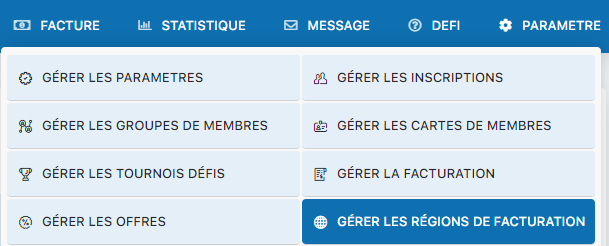
Menu for accessing billing region management
Enable the regions system
To use billing regions, you must first enable this module. Select Yes for the “Use billing regions” option:
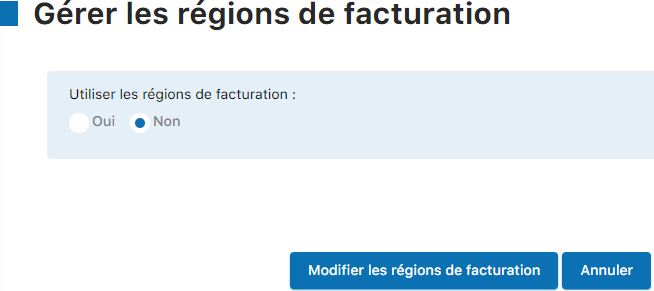
Selecting Yes to enable billing regions
Create your configuration regions
Go to the region creation form. You can create as many regions as needed to cover all the areas served by your club:
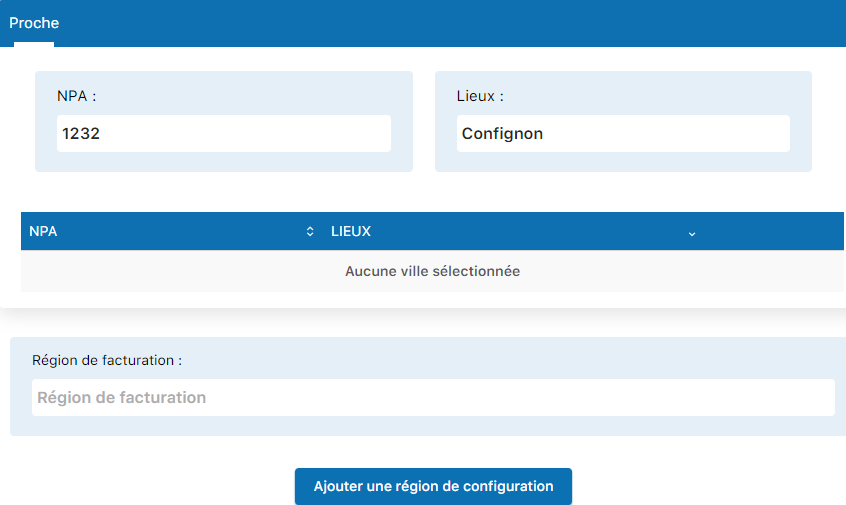
Form for creating a new billing region
Information to fill in for each region:
- Region name : Clearly identify your region (e.g., “Municipality of Lausanne”, “Neighboring cantons”)
- Municipalities included : List all the municipalities included in this region
- Description : Give an optional description of the region
- Any other setting specific to your club's configuration
Finalize the creation
After filling in all the fields, click the button “Add a configuration region” to create this region. Repeat this step for each distinct rate region of your club.
💡 Tip: Organize your regions carefully from the start. A clear structure of rate regions makes later rate management easier and avoids billing errors. Remember to document the name and municipalities of each region for future reference.
Plugin.ch Tutorial — Manage settings