


Manage seasons
Open the winter season by copying last season
Every autumn the same question comes back: “Can we duplicate the 2025-2026 season to keep last year's bookings?”. Yes, with one nuance: Plugin.ch does not copy a season “as a block”. You first create the new season, then you link the sport to that season by copying it from an existing season. That is when the courts, opening hours, prices, restrictions and fixed hours of last winter are carried over, while the members' subscriptions are taken from the season of your choice, for example the summer that is ending.
Example followed in this article: the club opens Winter 2026-2027 by copying Winter 2025-2026 (courts, opening hours, prices, fixed hours) and takes the members' subscriptions from Summer 2026, the current season, whose member list is the most up to date.
What is carried over and what is not
- the sport-season settings: non-members, personalised bookings, RFID, free booking, open matches, number of booking days;
- the opening hours and the length of the periods;
- the courts and court groups;
- the subscription types (the same categories);
- the prices from “Manage prices” and the till prices;
- the restrictions and family discounts;
- the fixed hours : players, day, time, court, to be re-validated.
- each member's subscription, with automatic move to the higher category according to age;
- the personalised-hours and guest counters.
- last year's individual bookings;
- the recurrences;
- the lessons, the statements and the bookable articles;
- the invoices.
1. Create the new season
Go to SPORT → Manage seasons. Enter the season name (15 characters at most, for example “Winter 2026-2027”), its start date and its end date, then click Add a season.
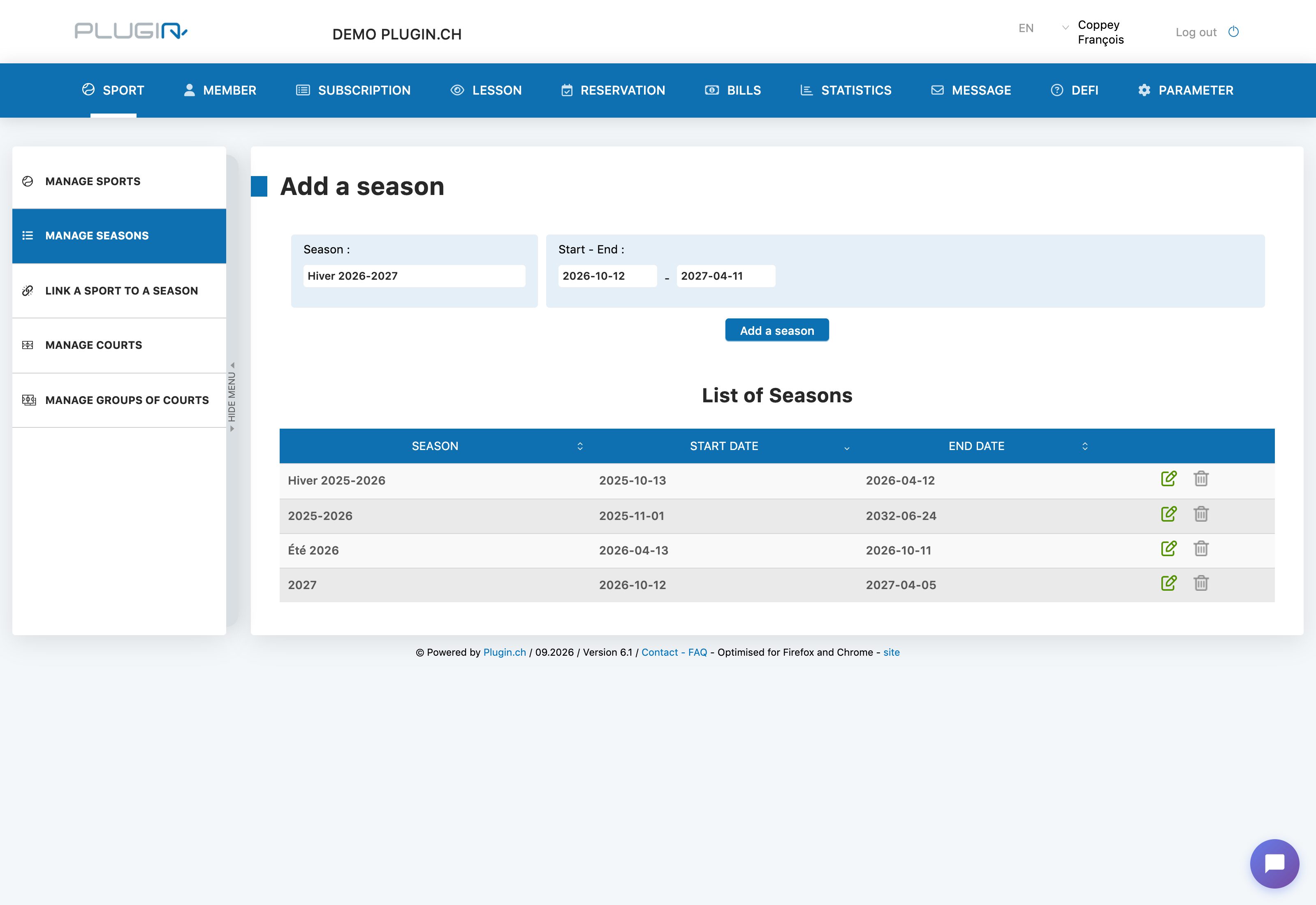
Make the seasons follow each other without overlap: winter starts the day after summer ends. The date viewed on the booking board determines which season applies.
The season appears in the list. At this stage it is empty: no sport is linked to it yet.
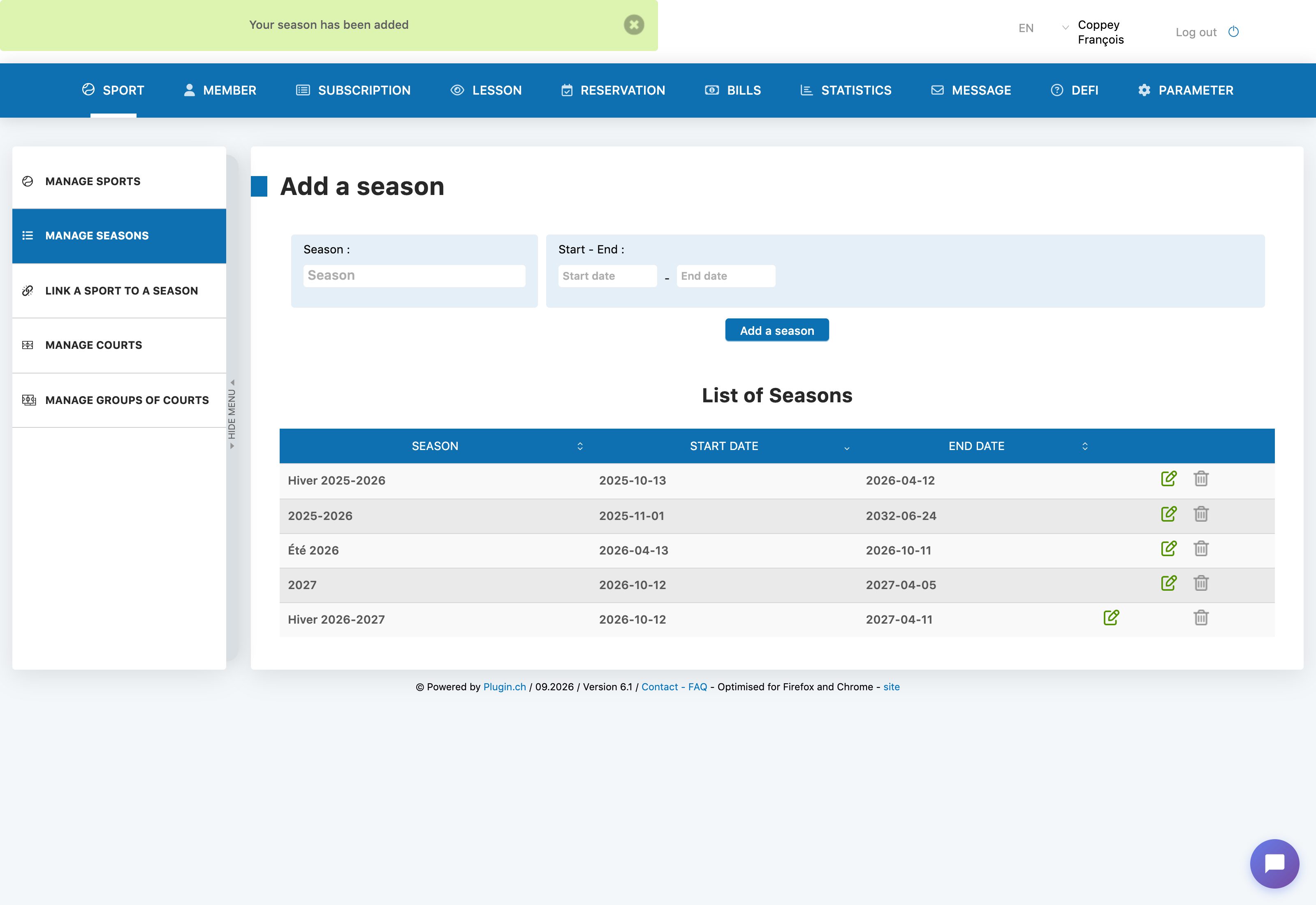
2. Link the sport to the season by copying last winter
Go to SPORT → Link a sport to a season. Choose the sport (Tennis) and the new season (Winter 2026-2027), then expand the panel Use existing parameters.
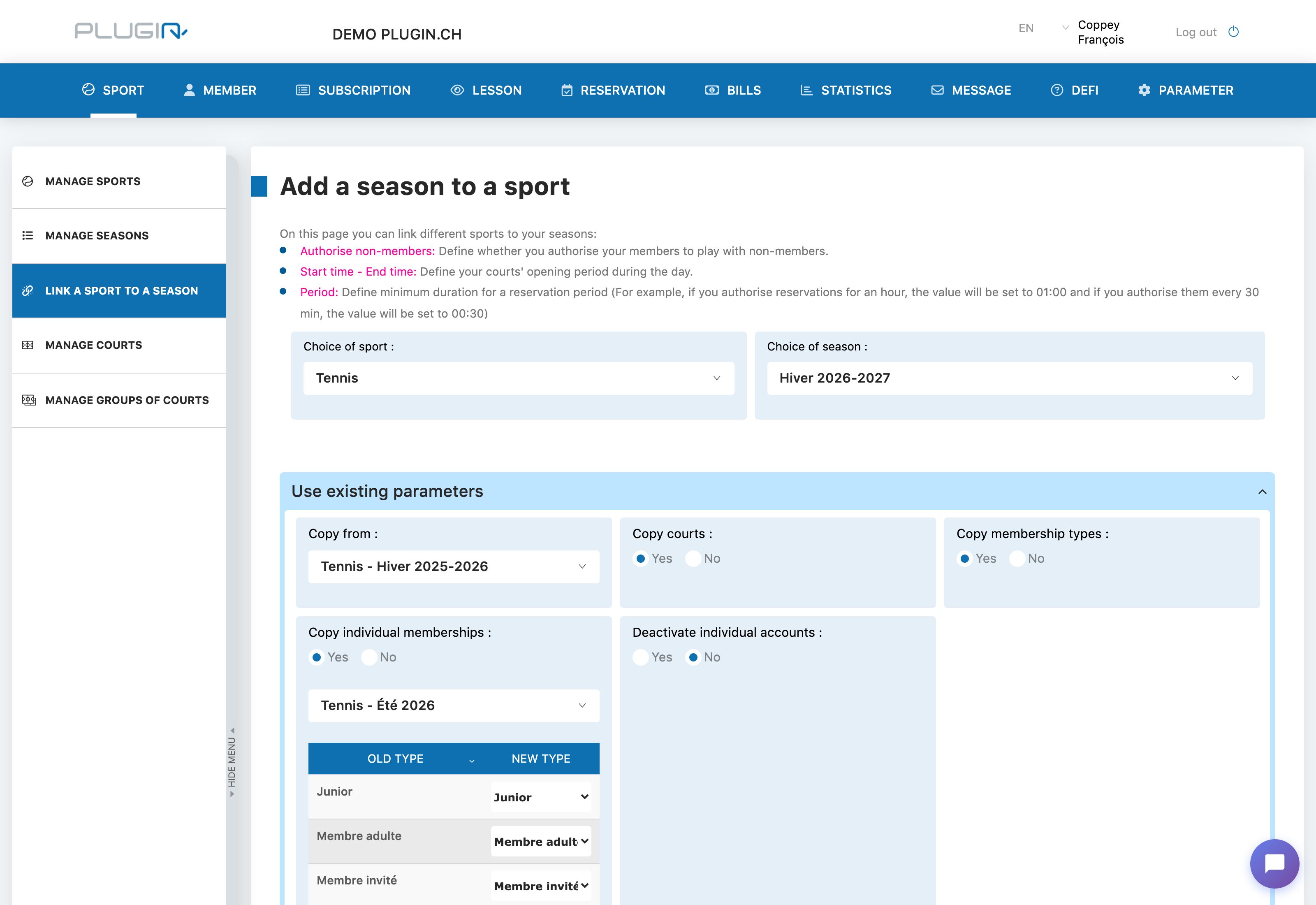
Fill in the options as follows:
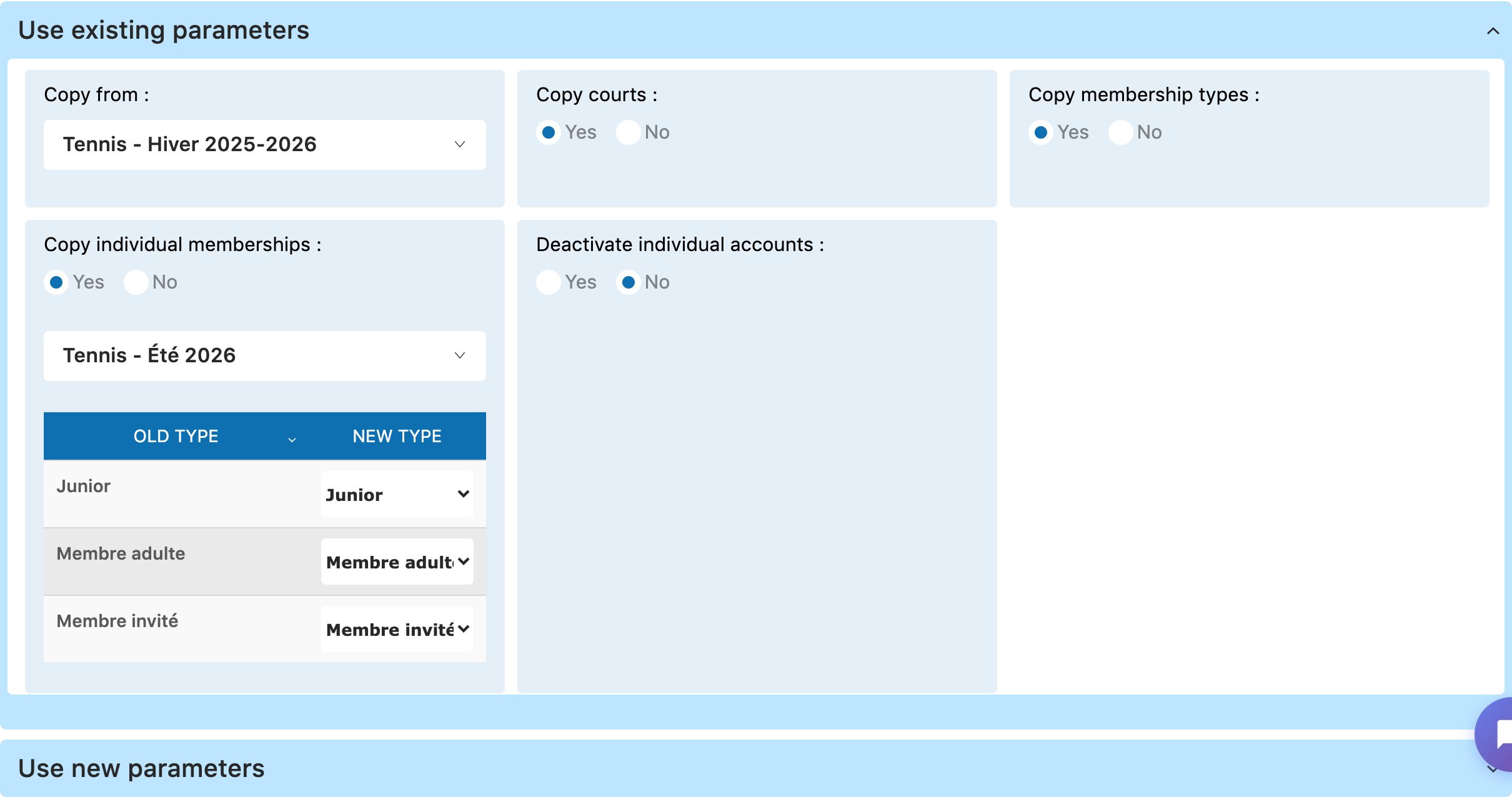
- Copy from : the season used as a template. Choose the previous winter (Tennis - Winter 2025-2026), not the summer: it is its opening hours, prices and fixed hours that you want to get back.
- Copy courts : Yes.
- Copy membership types : Yes. This option is also what carries over the fixed hours and, together with the courts, the prices.
- Copy individual memberships : Yes, then choose in the list below the season whose members you want to take over, here Tennis - Summer 2026, the current season. The table Old type → New type matches each summer category with a winter category: the match is pre-filled when the category exists in both seasons. Leave “-” to not carry over a category, for example a “summer only” subscription.
- Deactivate individual accounts : No so that members can book as soon as the season opens. Yes if you want to block each subscription until the membership fee is paid; you will then reactivate them one by one in MEMBRE → Manage memberships.
Click Add a season to a sport. The message “In progress…” stays displayed during the copy, which can take a good minute for a large club. At the end, the confirmation appears and “Tennis - Winter 2026-2027” shows up in the list of sports linked to a season.
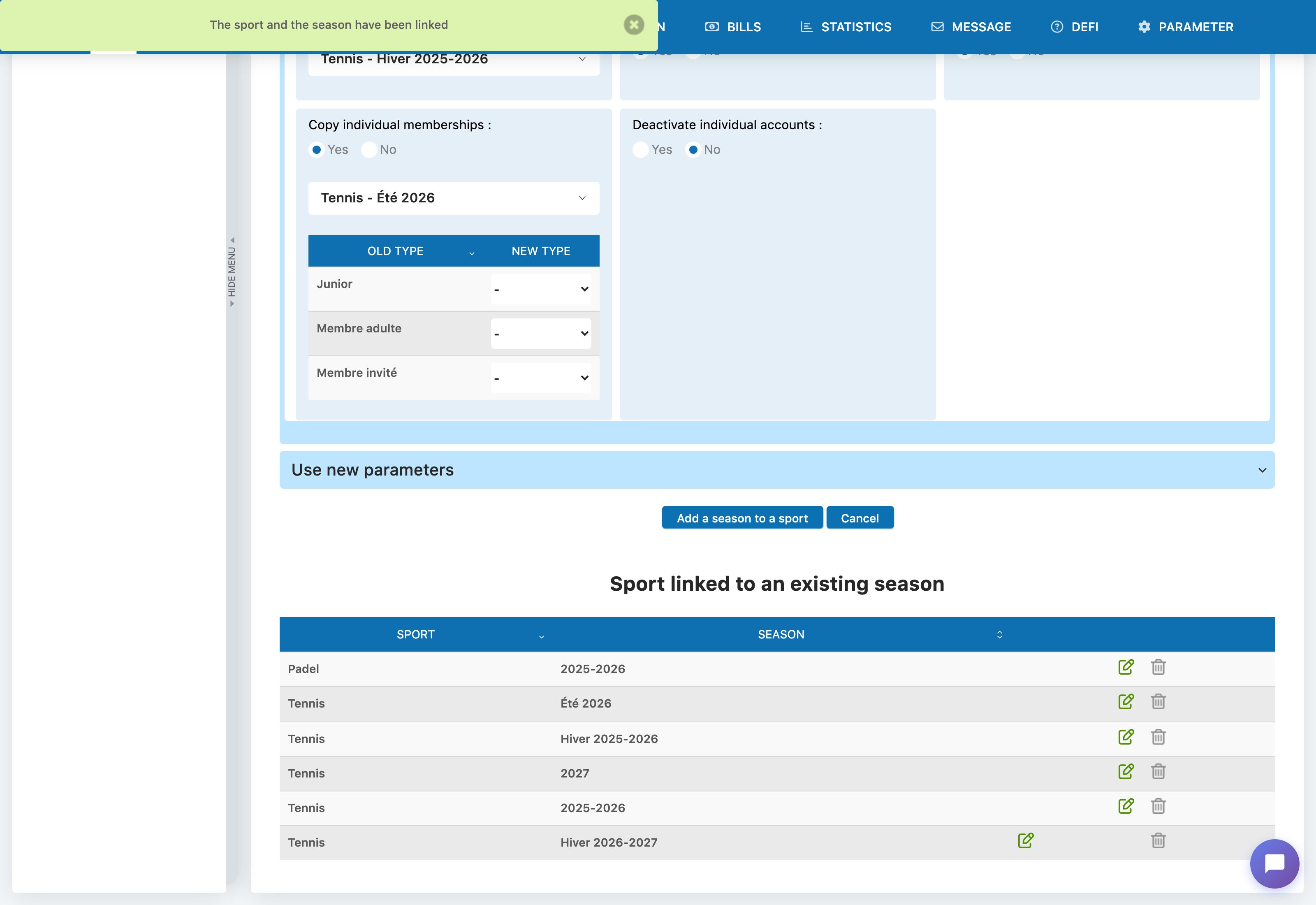
Category change by age: if a subscription type has a maximum age and a higher subscription (see the article Manage subscription type), members who exceed that age at the start of the new season automatically move to the higher category, for example from Junior to Adult member. People removed from the members are not carried over.
3. Move to the new season to check it
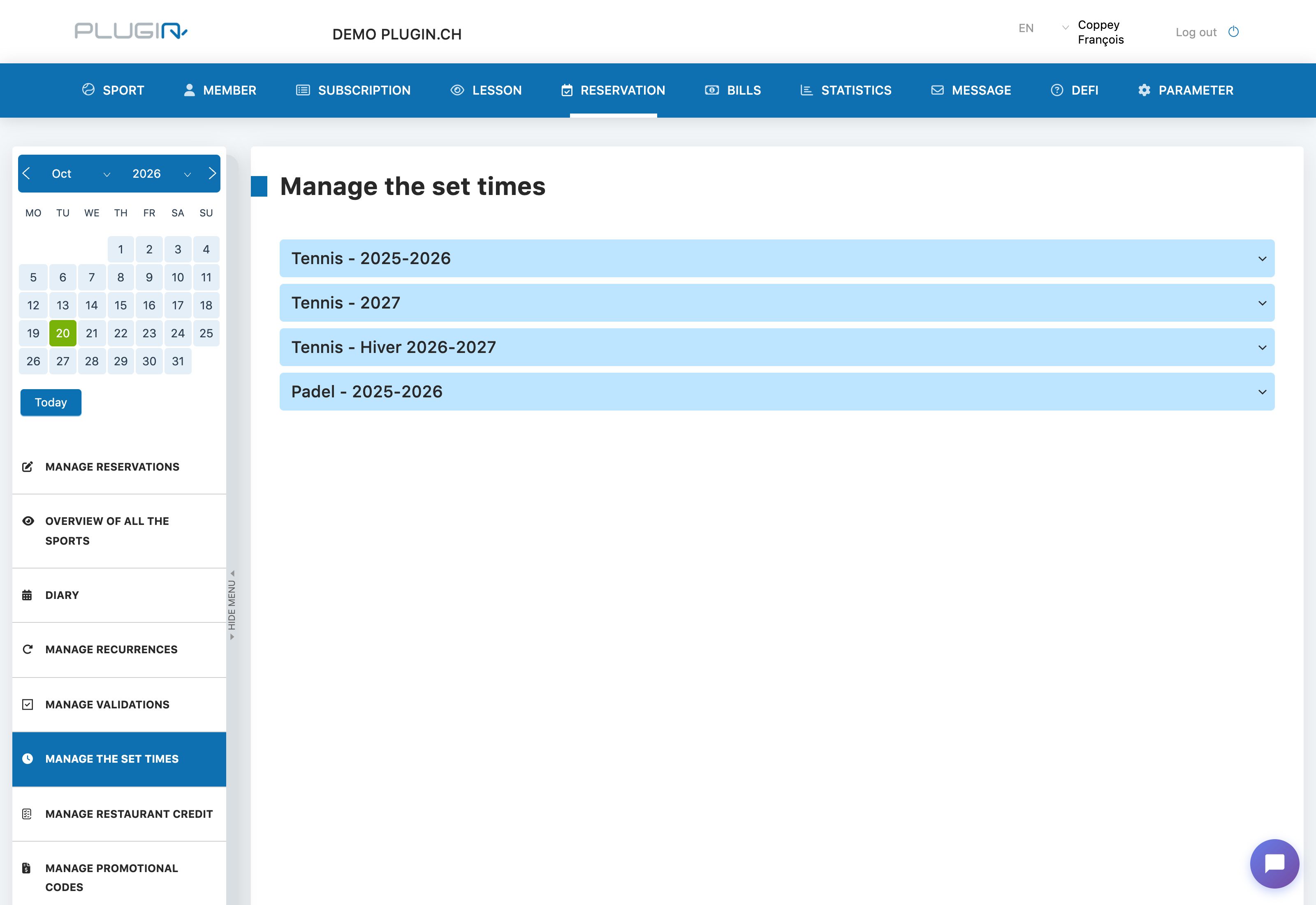
The pages Manage prices, Manage the set times and Manage memberships show the sport-seasons of the date selected in the calendar on the left. As long as you are on a summer date, the new winter season does not appear there: first click a date within the new season, for example 20 October.
4. Check the prices
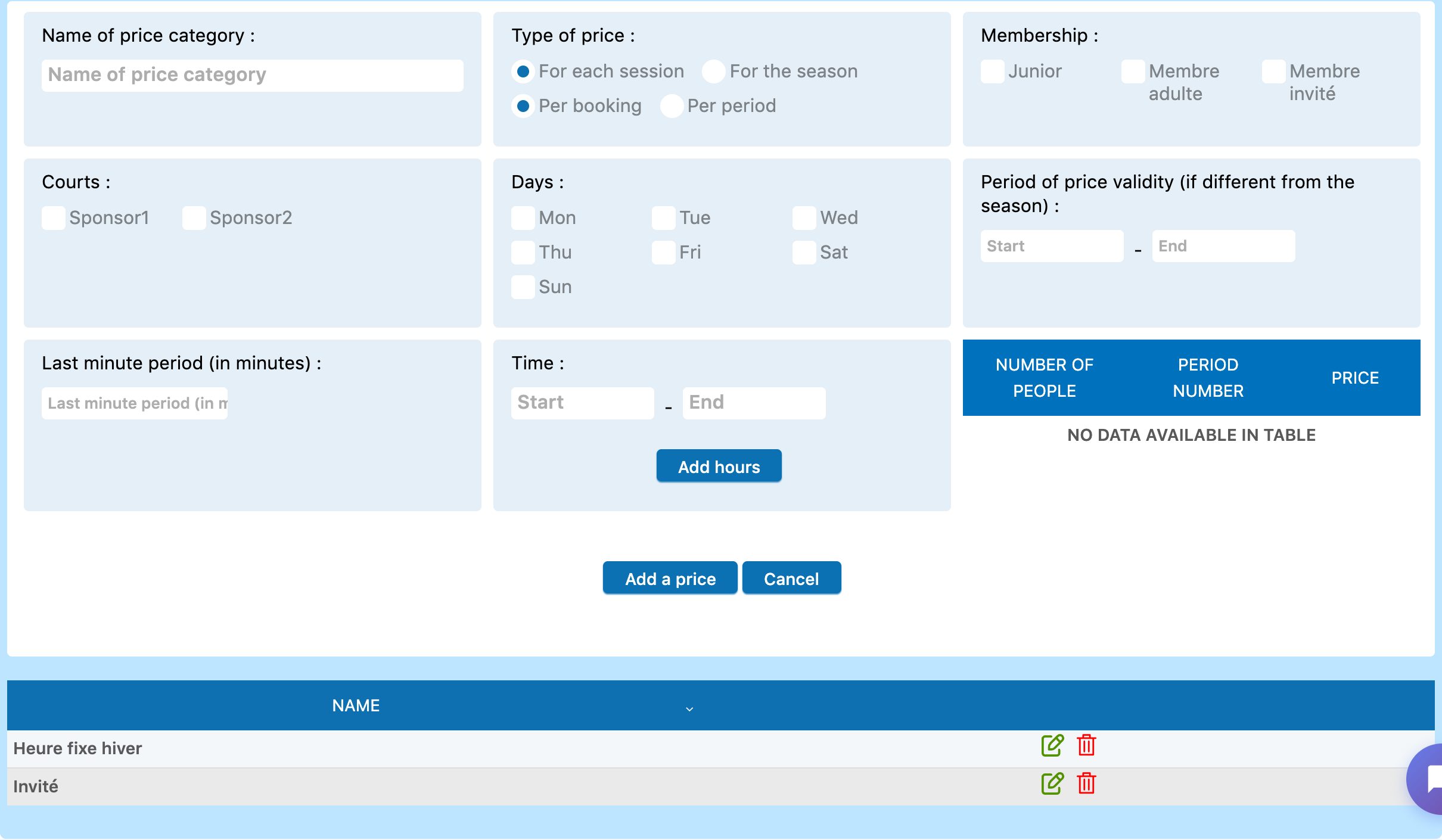
In ABONNEMENT → Manage prices, expand “Tennis - Winter 2026-2027”: last winter's price categories are there, identical (subscriptions concerned, courts, days, time slots, price grid and price type). Change them if your prices change. To create or understand a price category, see the article Create booking prices: per session or per season.
5. Re-validate the fixed hours
In RESERVATION → Manage the set times, expand “Tennis - Winter 2026-2027” and select a weekday: last winter's fixed hours are carried over with their players, court and time. The fixed hours period is pre-filled with the dates of the new season.
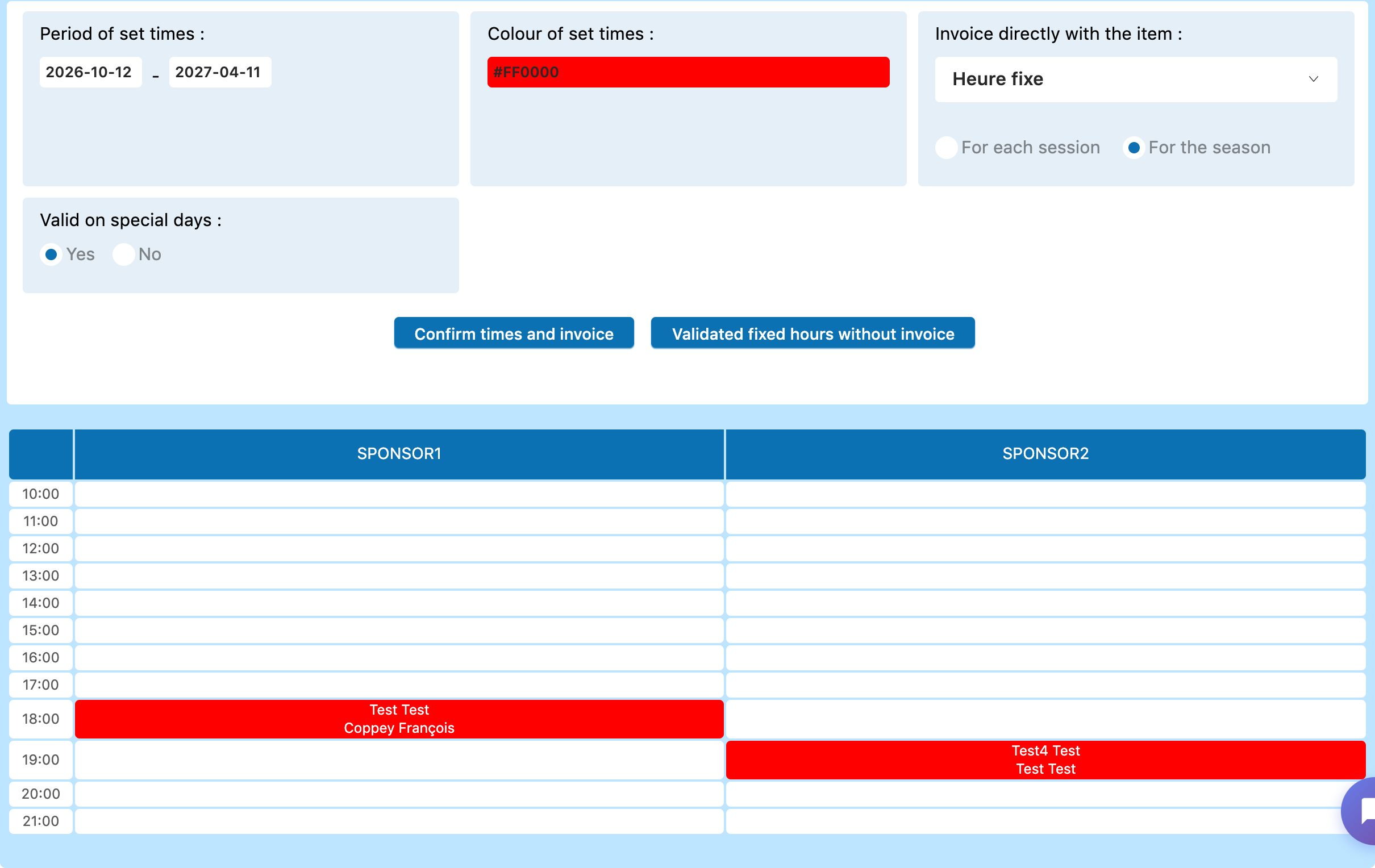
Important: the copied fixed hours are only “placed” on the board. The bookings of the new season are not created yet. Tidy up first (click a fixed hour to remove it if the player stops, add the new ones), then click Confirm times and invoice : the bookings are generated week after week over the whole period and the chosen article is charged to each player for invoicing. A player who is no longer a club member is flagged in red and their fixed hour is not validated.
For the detailed procedure (invoicing article, per session or per season choice, adding a fixed hour), see the article Manage the set times.
6. What next?
- Subscriptions : in MEMBRE → Manage memberships, still on a date of the new season, check the categories, add the new members and reactivate the accounts if you had chosen to deactivate them. See the article Manage member subscriptions.
- Membership fees : create the new season's invoices once the subscriptions are in order. See the article Create invoices.
- Restrictions and opening hours : they have been copied; adjust them if needed in ABONNEMENT → Manage restrictions and SPORT → Manage courts.
- Recurrences (the club's recurring bookings, maintenance, lessons): they are not carried over, recreate them in RESERVATION → Manage recurrences.
- Do not delete the old season: its bookings, invoices and statistics depend on it.
The booking board switches to the new season by itself depending on the date viewed: there is nothing else to activate.
Plugin.ch Tutorial — Manage seasons